Start HideIt
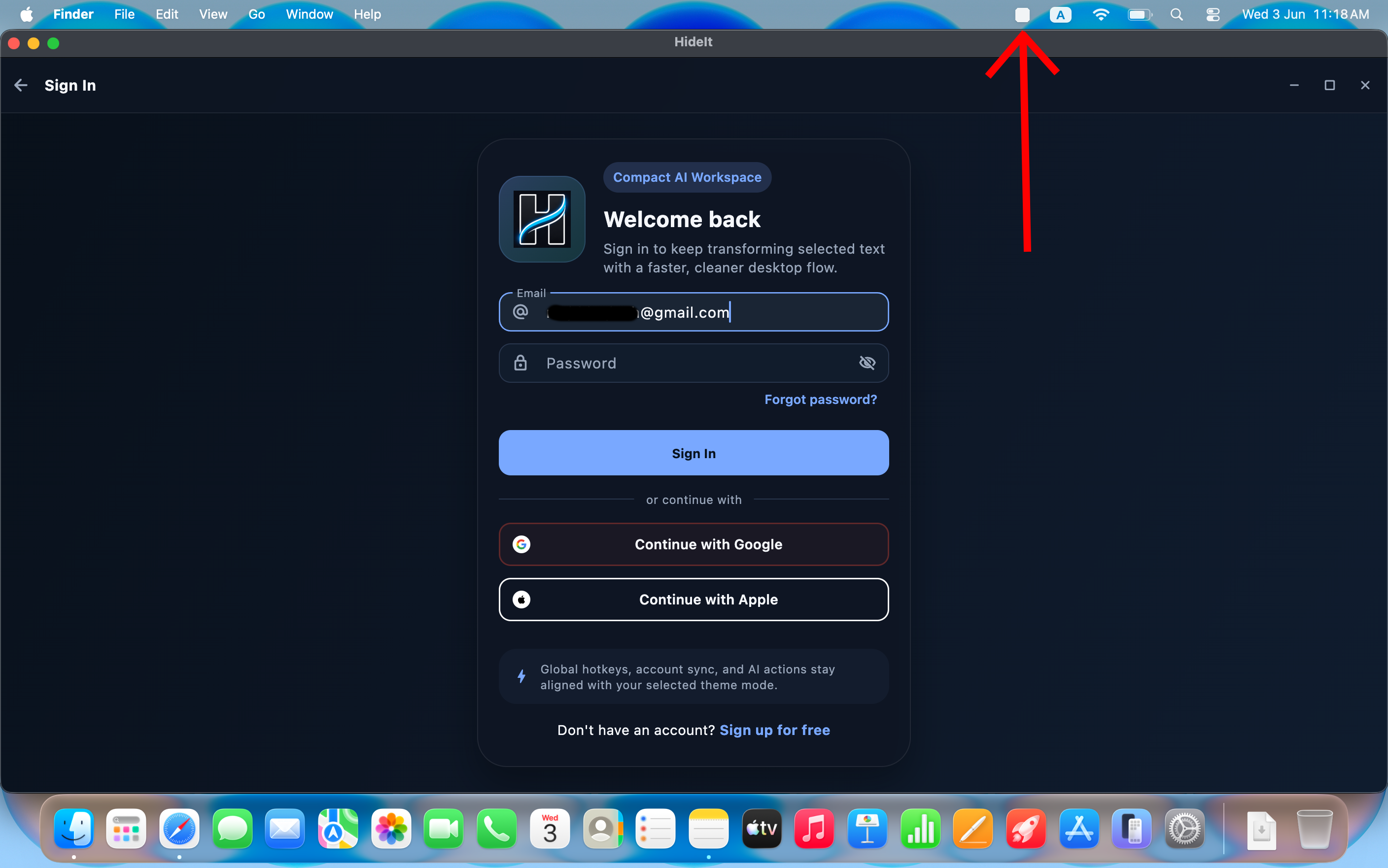
Launch the app to see the main window and the menu bar icon appear.
Open HideIt. You will see the main app window and the HideIt icon appear in the menu bar at the top of your screen.
Enable macOS Permissions
HideIt needs Accessibility and Input Monitoring to detect hotkeys and paste results automatically.
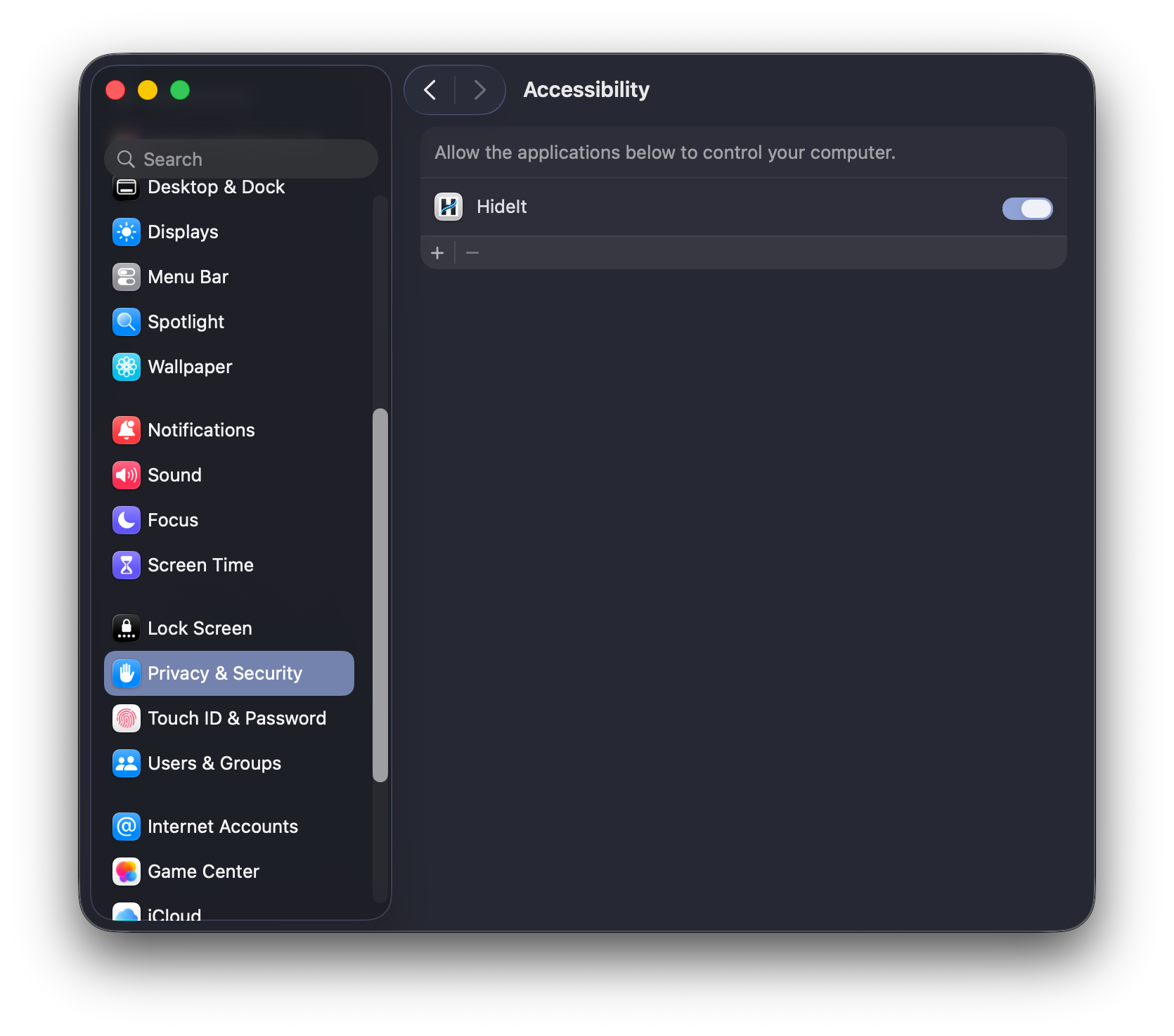
Open System Settings > Privacy & Security > Accessibility. Enable the toggle for HideIt.
Open System Settings > Privacy & Security > Input Monitoring. Enable the toggle for HideIt.
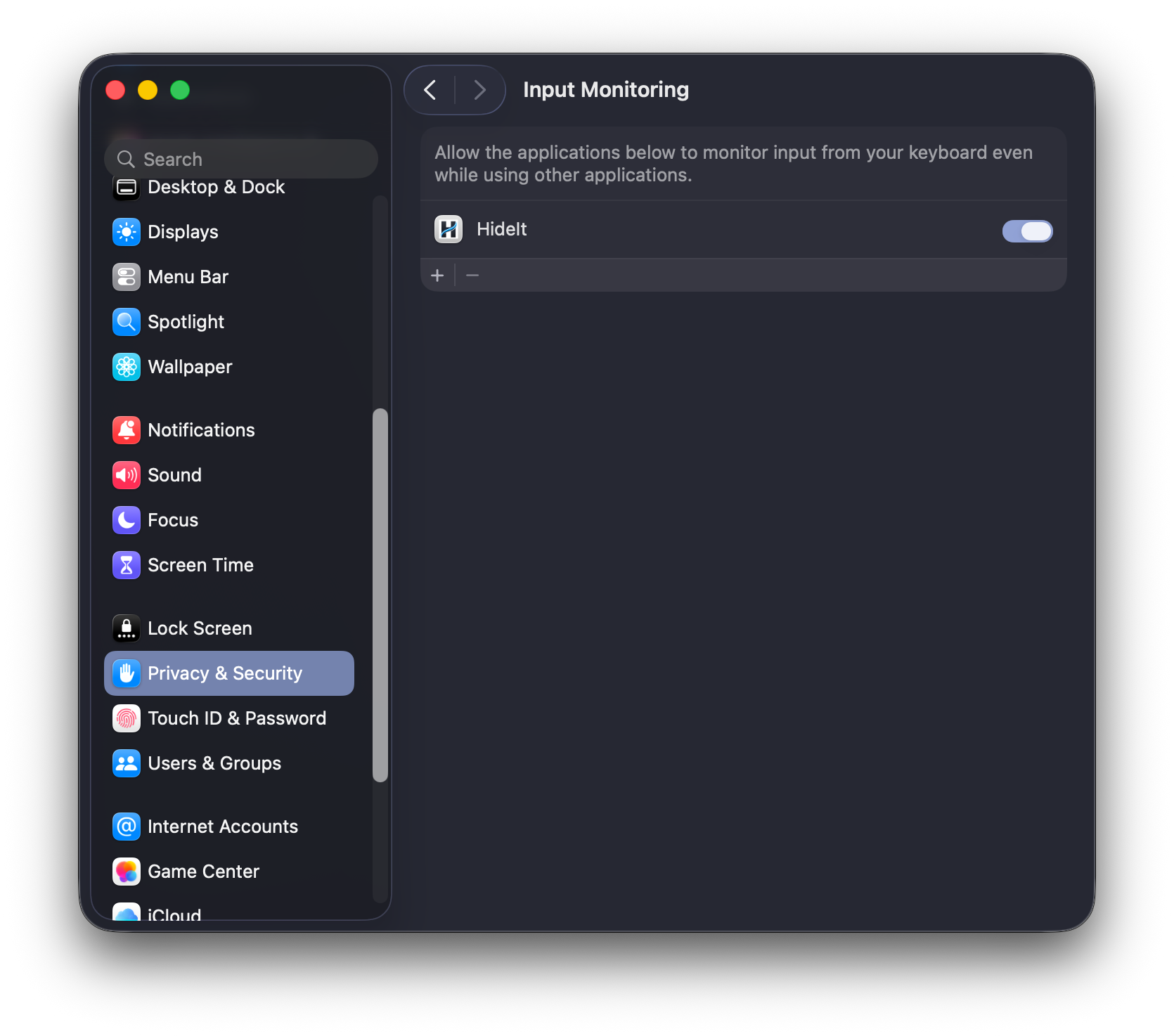
Tip: If HideIt is not in the list, launch the app once, then return to System Settings.
Enable Automatic Paste
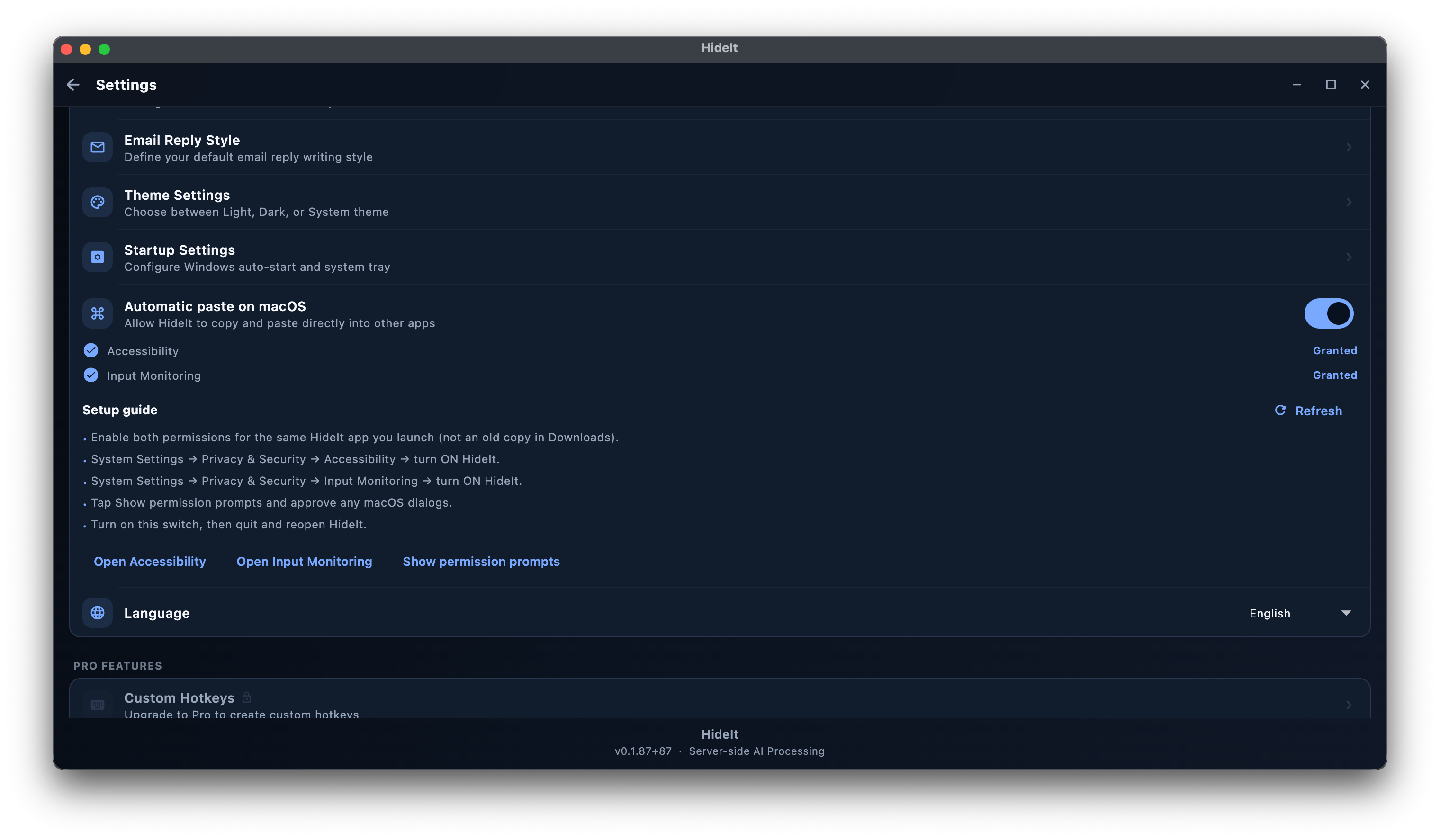
Let HideIt paste the generated result directly into your active app after it finishes.
In HideIt, open Settings and enable the Automatic Paste toggle.

If macOS prompts you again, confirm that Accessibility and Input Monitoring are both still enabled for HideIt in System Settings.
Use the Hotkeys
Select text in any app and press a hotkey.
Select text in any app then press one of these hotkeys:
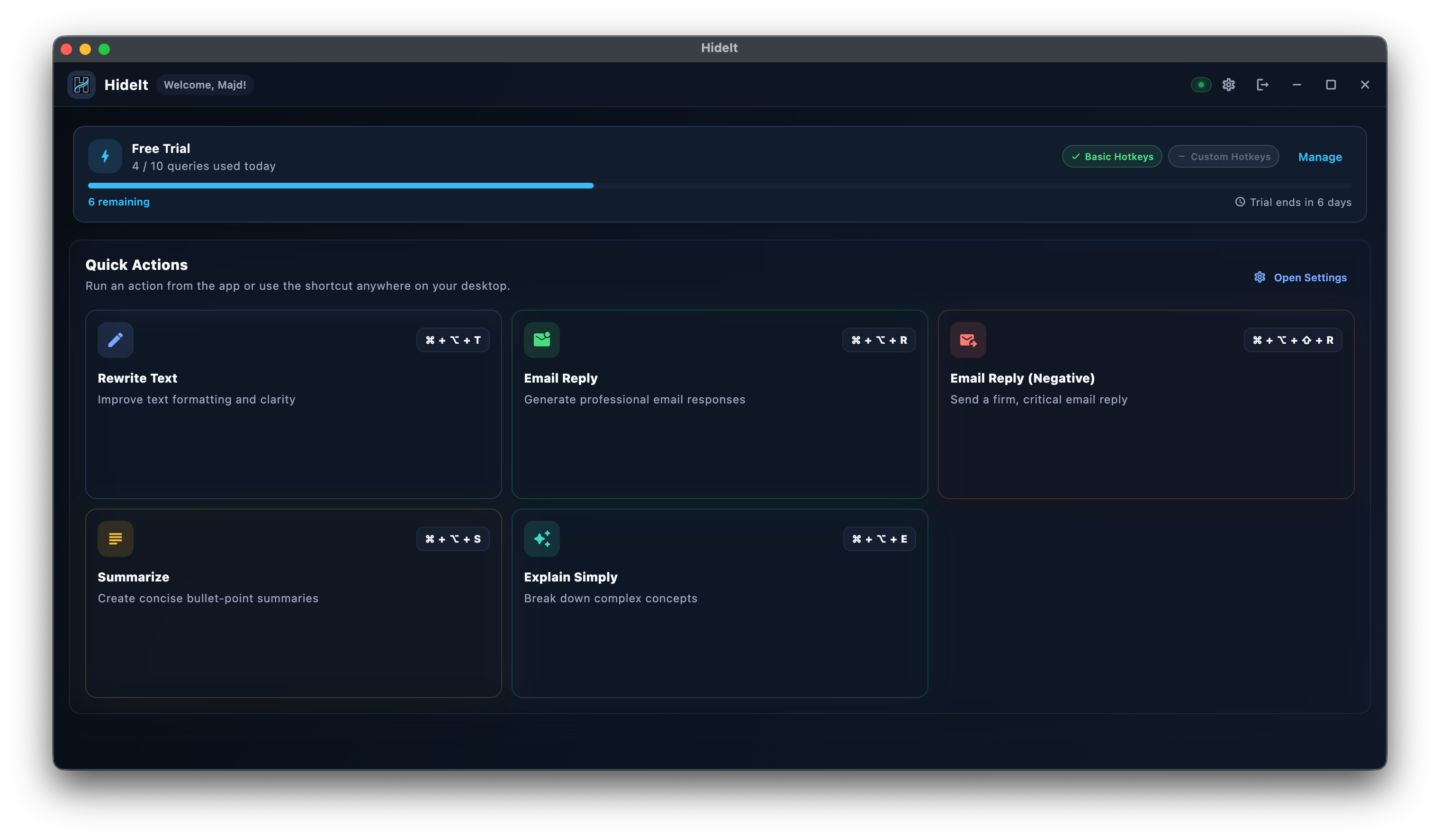
Customize the writing style for Email Reply in Settings.
Upgrade Your Plan
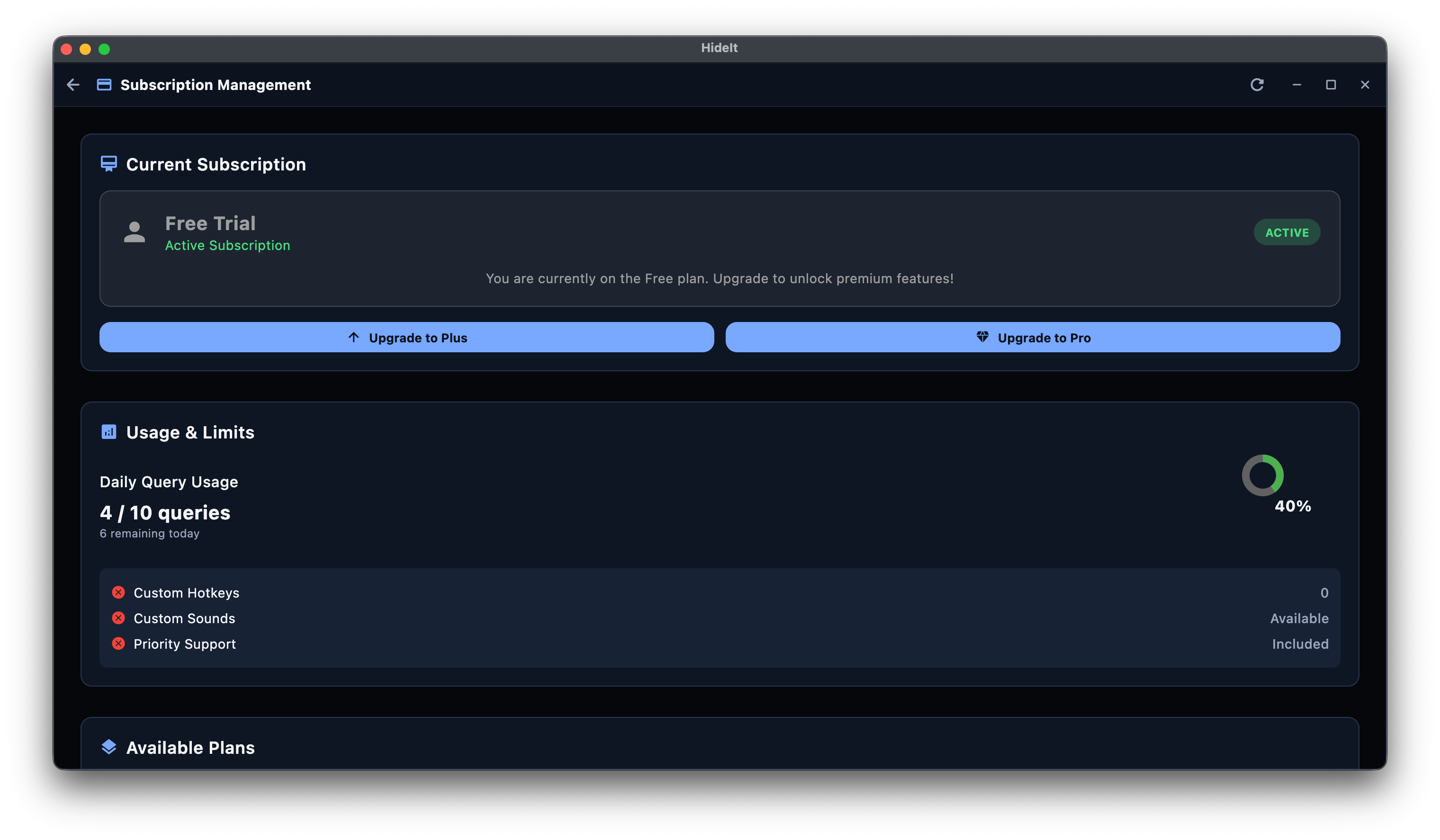
Unlock Pro features including custom hotkeys and extended usage limits.
Open HideIt, go to Settings then Subscription. Choose a plan and confirm payment.
Create a Custom Hotkey
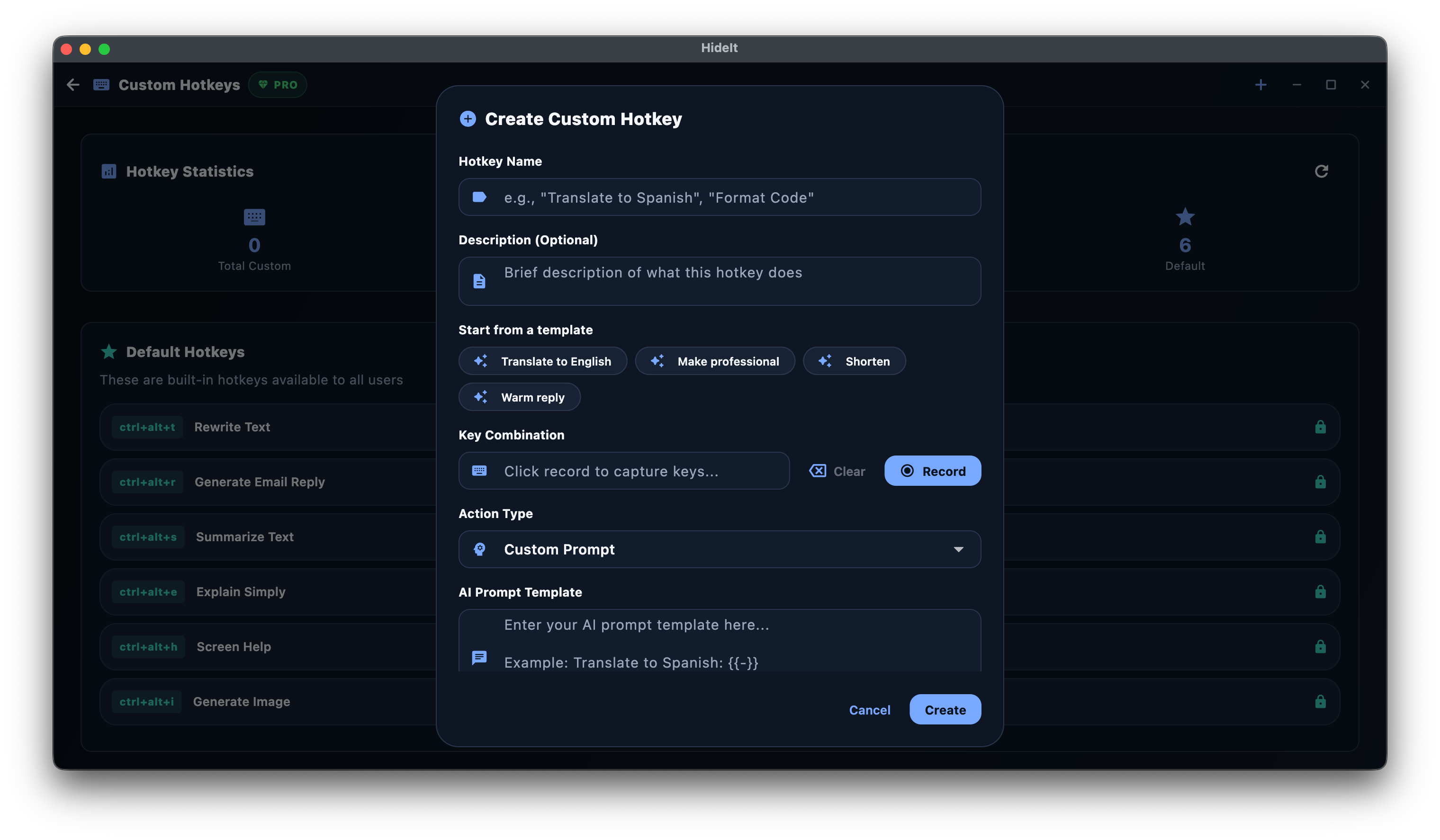
Run any prompt with a single key combination.
Open HideIt, go to Settings, then Hotkeys, then Custom Hotkeys, then click Add.
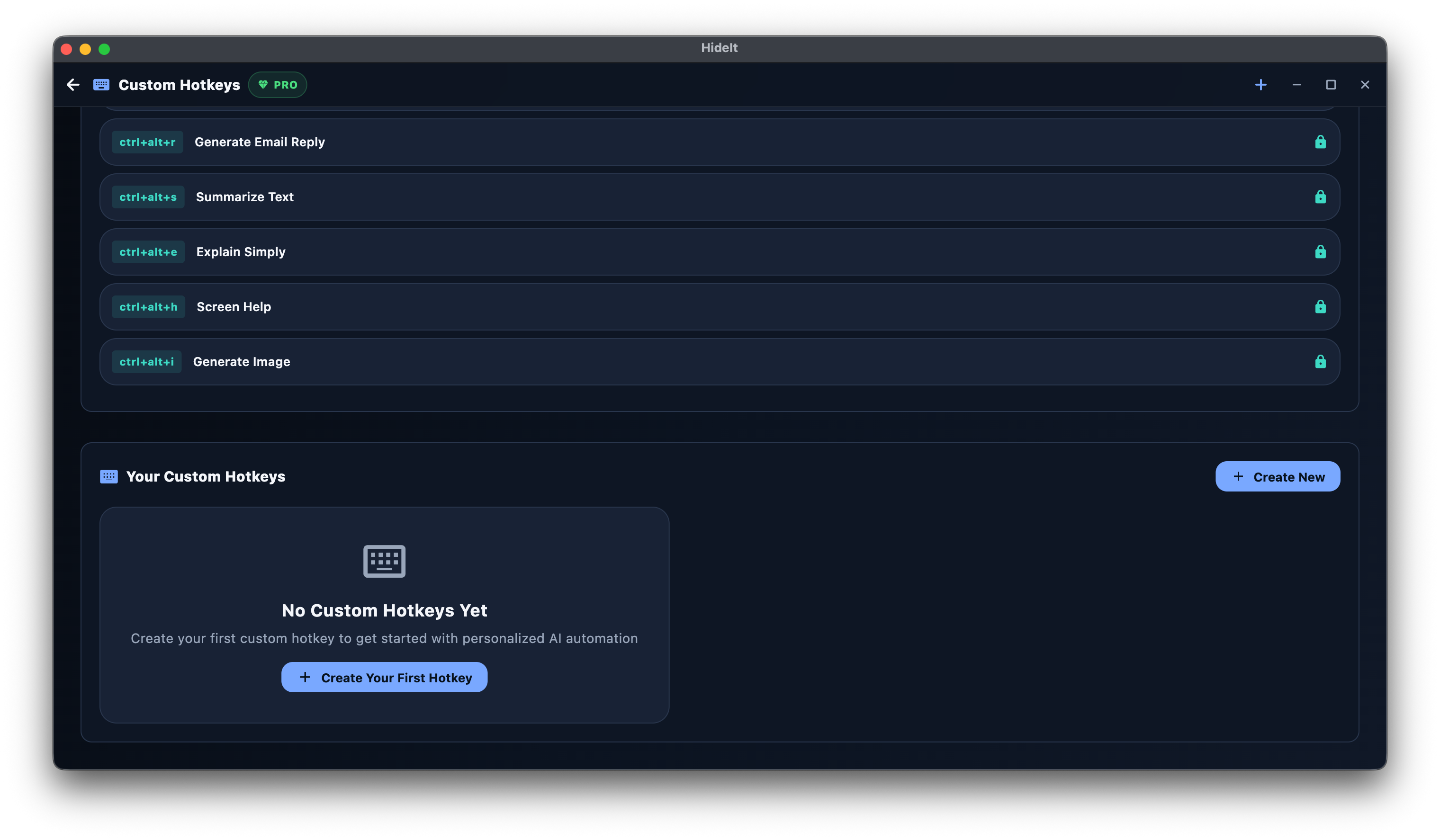
Choose a key combination, write your prompt, and save. Test it by selecting text in any app and pressing your new hotkey.
Troubleshooting
Quick fixes for the most common issues.