Where to Find Settings
Access all HideIt configuration from the main window or directly from the menu bar icon.
Open HideIt, then click Settings. You can also open Settings by clicking the HideIt icon in the menu bar.

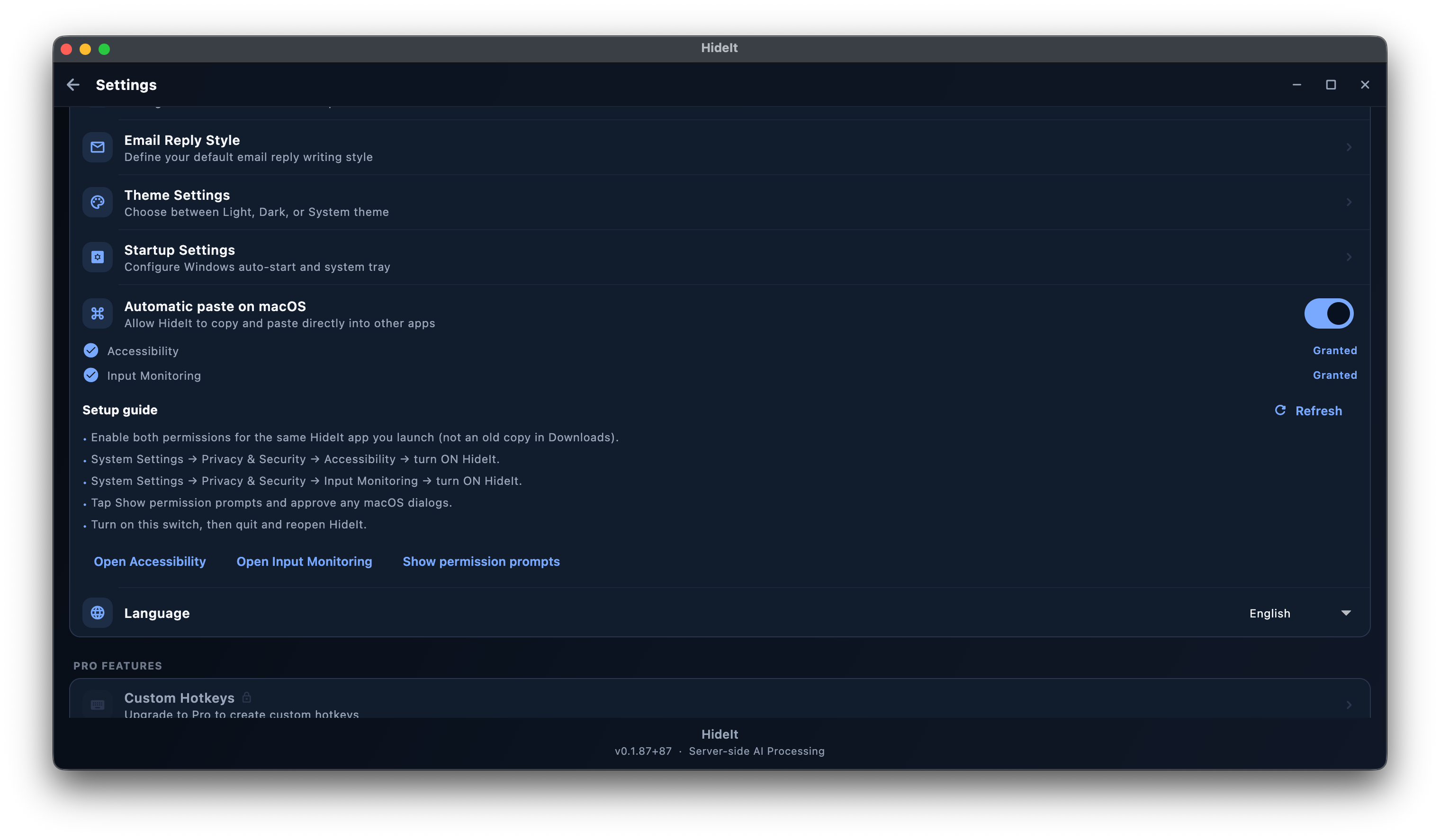
Automatic Paste
When enabled, HideIt pastes the generated result directly back into your active app.
Toggle Automatic Paste on. If it does not work, re-check that Accessibility and Input Monitoring are both enabled for HideIt in System Settings.
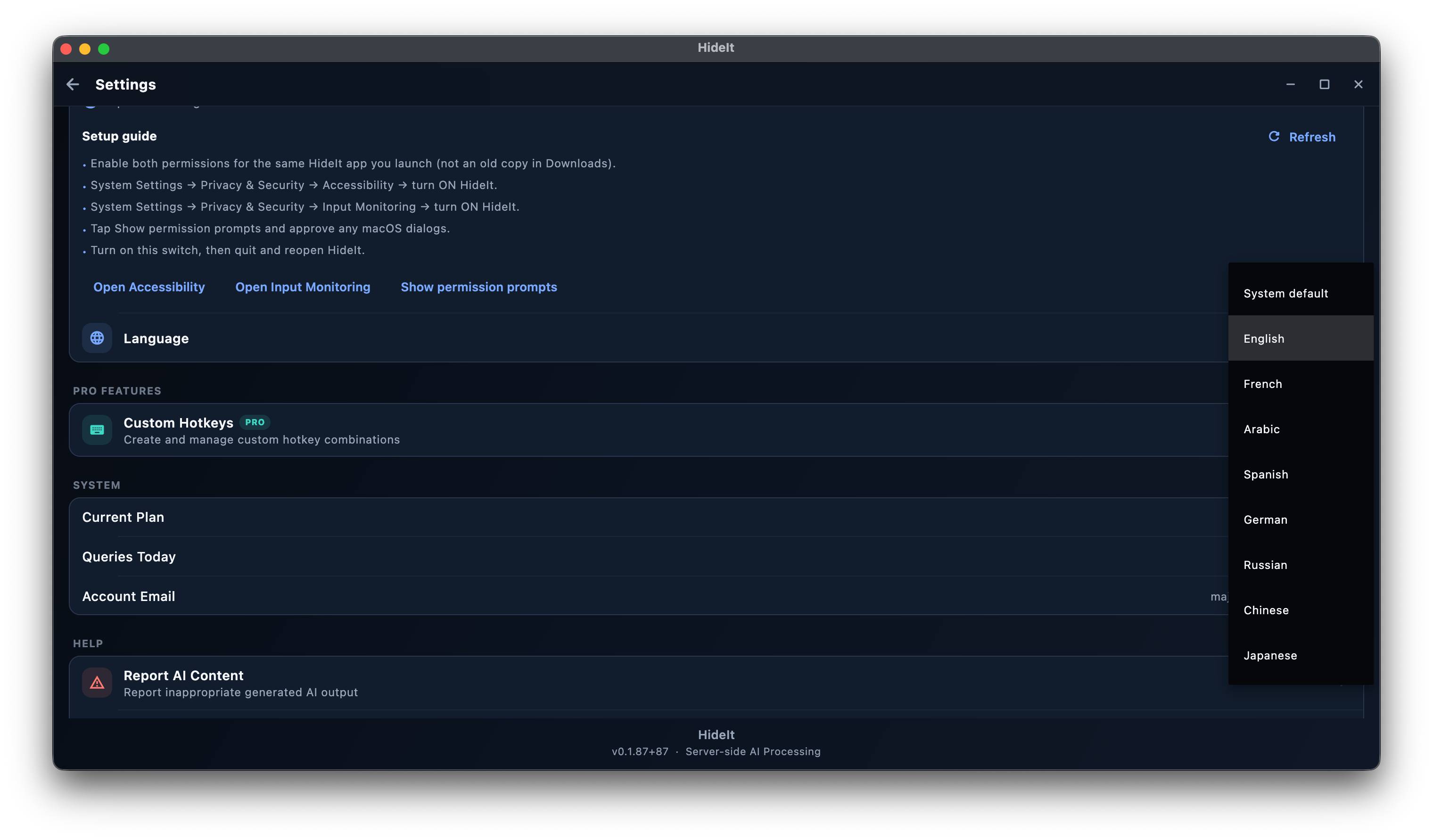
Language
Set HideIt to follow your macOS system language or choose a specific one.
In Settings, find Language and choose System (recommended) or a specific language from the list.
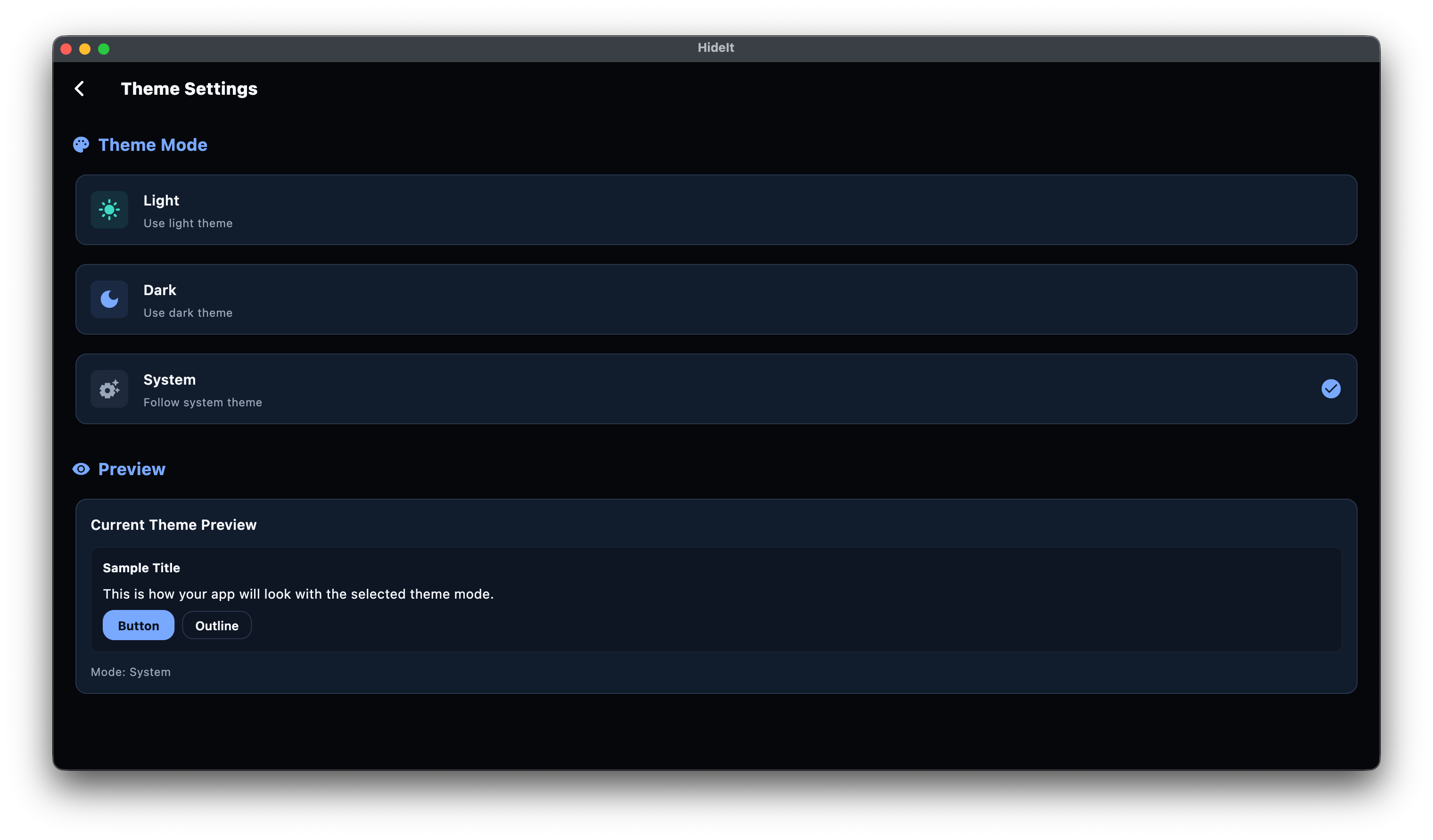
Theme
Choose Light, Dark, or System.
Open Theme Settings and select your preferred mode: Light, Dark, or System.
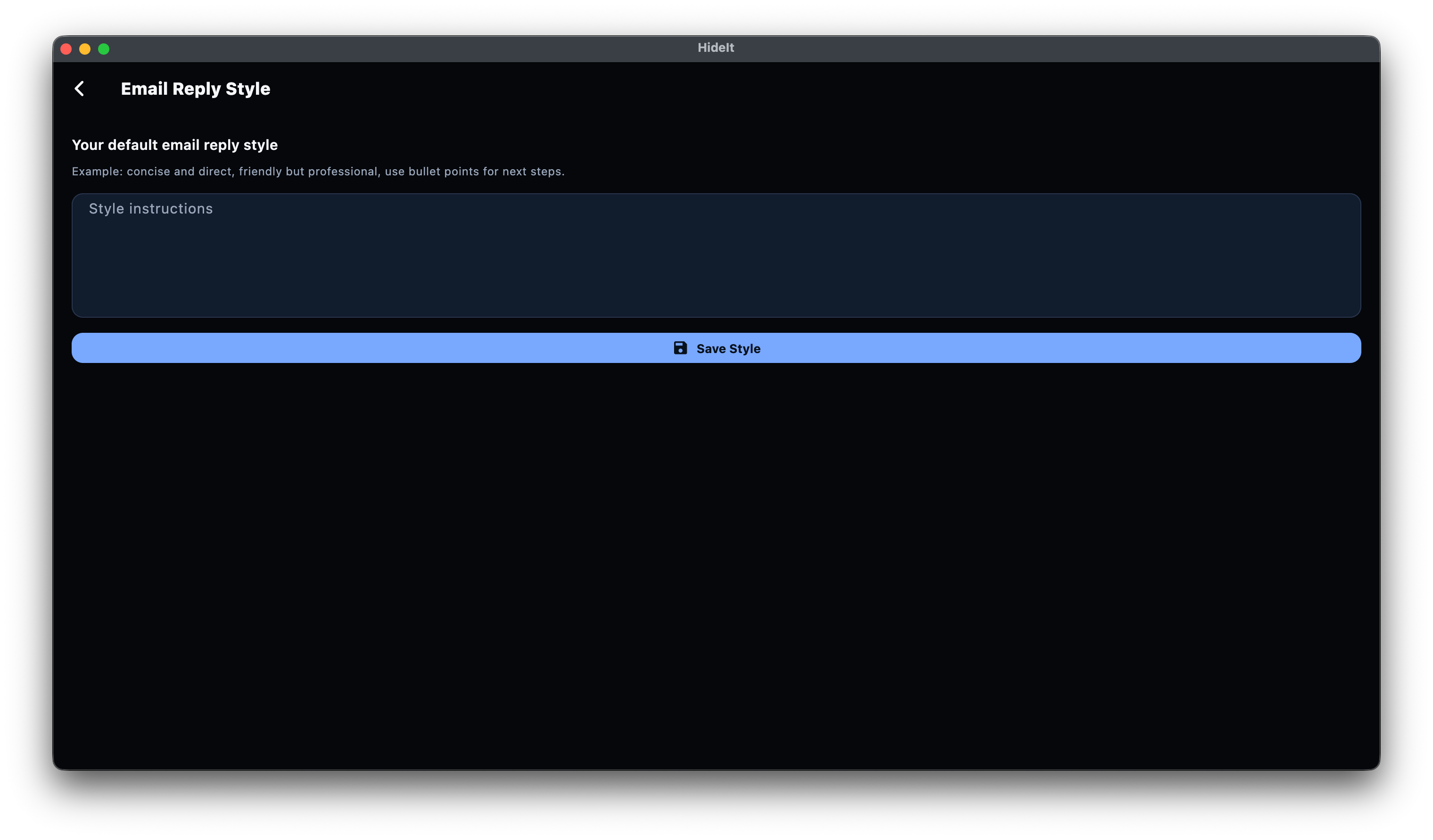
Email Reply Style
Define how HideIt writes email replies.
Email Reply hotkeys on macOS.
Open Email Reply Style, enter your instructions, then click Save Style.
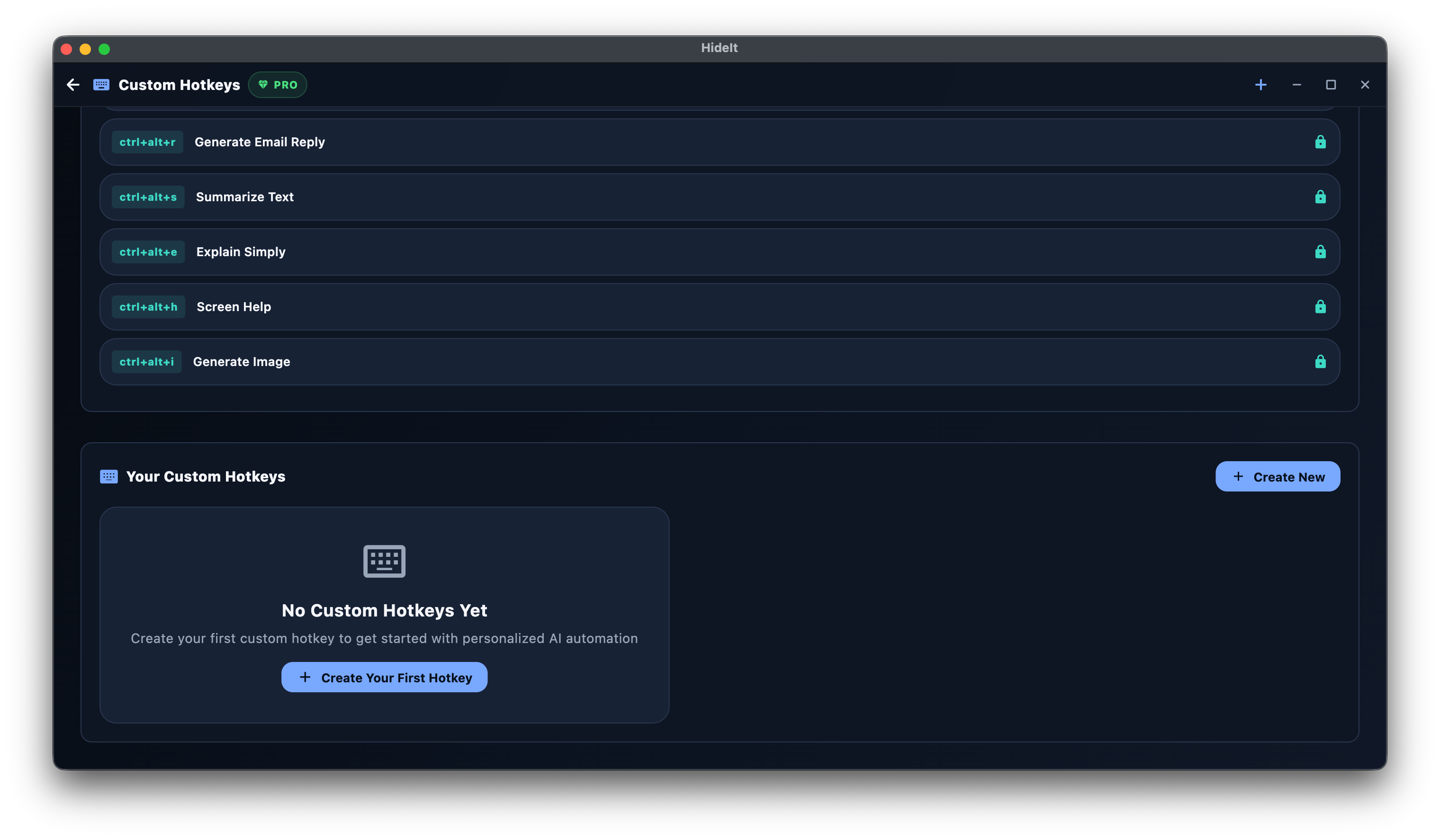
Custom Hotkeys
Create and manage your own key combinations. Requires a Pro plan.
Go to Custom Hotkeys to create and manage your own combinations. If you are not on Pro yet, HideIt will offer to upgrade.
Subscription
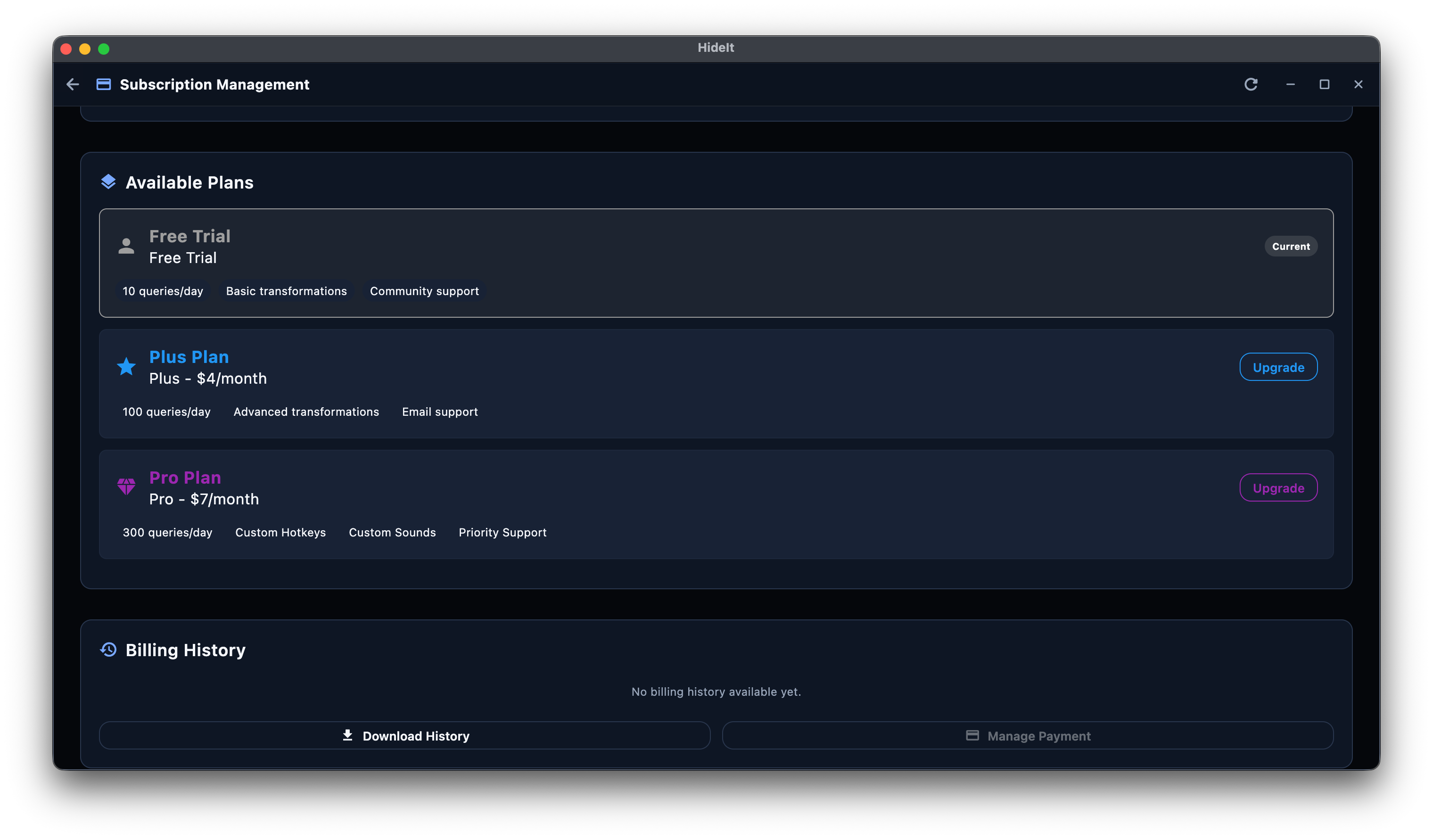
View your current plan, upgrade, or manage billing from one place.
Use Subscription to upgrade your plan, manage billing, or review your current usage.
Troubleshooting
Quick fixes for the most common Settings issues.